
Getting started with Java
This subchapter is intended to provide you with a basic understanding of Java.
The goal is not that you understand each and every aspect, but that you have a solid foundation that makes learning the rest much easier.
Code Editors
In this subchapter you will find multiple code editors like this.
They allow you to run some simple Java code directly from your browser. Note that there are multiple tabs at the top. Each tab represents its own file that can be opened. Click the run button to execute the code, and after a few seconds it should show you some output in the Terminal section. The output should look somewhat like this:
▶ Running Main.main()...
Hello World!
Process finished with exit code 0
"Hello World!" being the output that the code told the program to print out. The code editors allow you to modify the code however you want. For now, you could try replacing the part within the green highlighted quotes with something else, and see how the result differs.
What is Java?
Java is a Programming Language. Specifically, it is an Object-Oriented Programming Language (OOP). What this means exactly can wait for later.
At its most basic, a programming language tells the computer to do a certain task. A whole program, then, is a sequence of tasks for the computer to perform.
Computers themselves do not read or understand human-readable code. Computers work with machine code, a sequence of 0's and 1's that would be hard to decipher by the human eye. For that purpose, higher-level programming languages exist. They provide human-readable commands, which are then turned into machine code by a compiler.
Java is a bit special, however; it does not directly compile to machine code. One potential issue with a direct compile to machine code is that the required machine code is widely different on each platform and processor. This means that one program might need to be compiled multiple times for different platforms, and then shipped and adjusted separately.
Java attempts to solve this with its Java Virtual Machine (JVM). Instead of compiling directly to machine code, you compile to Java bytecode. This bytecode is a language that the JVM understands and translates to the platform's required machine code. This means that any computer that has the JVM installed can understand Java code, as the JVM release for each platform builds the required machine code.
flowchart TD
    A["<b>Java source code</b><br/>.java files<br/>Your human-readable code"]
    B["<b>Java bytecode</b><br/>.class files<br/>Instructions for the JVM"]
    C["<b>JAR file</b><br/>.jar<br/>a zip of .class files"]
    D["<b>JVM</b><br/>the Java runtime"]
    E["<b>Machine code</b><br/>instructions your CPU<br/>actually understands"]

    A -->|compiles to| B
    B -->|bundled in to a| C
    C -->|JVM opens the zip and runs the bytecode| D
    D -->|translates to machine code on the fly| E
You do not need to fully understand this process, but it's worth remembering that:
- You write your code in Java code (.java files)
- It is compiled in to java bytecode (.class files)
- The compiled bytecode is packaged in to something like a zip (.jar)
What Starsector eventually receives from you is the .jar file, not the .class files or the .java files. Modifying .java files has no effect unless you compile said Java code.
Java Fundamentals
Syntax
Java has a specific syntax you have to follow. Syntax in this case being somewhat like the grammar of a natural language. As with written languages, there are rules that you have to follow in writing it. The difference being that in terms of a programming language like Java, the code will simply not run when the syntax is wrong.
In Java, every file is made up of a Class, a Class is made up of Methods, and a Method is made up of Statements and Expressions. Each of them is in their own Scope (a code block). A scope is declared with curly braces {}. An opening brace at the start of the scope, and a closing brace at the end of the scope. Every statement is to be ended with a semicolon ;.
Now, try running the code block below. You will notice that it throws an error. That type of error is called a Syntax Error. Syntax errors appear even before your program actually runs during compilation. It is an error that prevents your program from even being able to start. Try reading the error and attempting to understand why it happens, and try fixing it and running it again. When you make programs, things will fail. Learning to understand the kinds of errors Java throws at you can make programming much easier.
Do not worry if you can not get it fixed yet. You can find the solution under "MainFixed.java" in the code editor's tabs.
One last thing to note on this example is the error message itself. You may have noted that the error message says that there is an issue on line 8. But if you checked the solution, you will discover that the actual error is on line 7. This is a nasty issue with certain syntax errors. Syntax errors themselves make it hard for Java's compiler to understand what was meant to be done.
In this example, the error was that our method's scope was missing its closing brace. But Java identifies the class's closing } as the closing brace for the method, but now that it sees that brace as the closing brace, it can not find a brace that closes the scope of the class. This is why the error says Syntax error, insert "}" to complete ClassBody on line 8, whereas Syntax error, insert "}" to complete MethodBody on line 7 would actually make a lot more sense.
This can cause syntax errors to escalate and for the error messages to become less reliable. This is worth keeping in mind when trying to fix syntax errors specifically. Syntax errors can be quite annoying when just starting out, but thankfully modern tools like IDEs (i.e. JetBrains IntelliJ) will dynamically show red lines and error warnings even before you attempt to compile the code, but even those can lead to false trails when the syntax is already far too broken.
Statements and Expressions
The previous section mentioned the concepts of classes and methods. Try to keep them in mind, but for now they are concepts that are best reserved for later. Importantly, however, within a method's scope (the code block dictated by the curly braces), we can execute statements and expressions.
Statements are essentially actions, they perform some kind of task, like printing text to the terminal.
Expressions resolve to a value, like calculating 2+2=4.
2+2 //An Expression, but it doesnt do anything with its value
System.out.println("Hello World!"); //A statement, it prints a value to the console.
As mentioned earlier, statements have to be ended with a semicolon ;. It tells the program where one statement ends and where another begins. You may expect that each new line would be its own statement, but this is not the case. If you want to, you can split your statements across multiple lines, or put multiple statements into a single one by separating them with semicolons.
//One Statement across multiple lines
System
.out
.println("Hello");

//Multiple statements in one line
System.out.print("W"); System.out.print("o"); System.out.print("r"); System.out.print("l"); System.out.print("d");
Both of those examples will work perfectly fine. But in reality both of those would not be recommended though, as they make the code hard to read. There can be some use cases for spreading a single statement over multiple lines however, specifically for longer and more complex ones.
Often, the lines between Statements and Expressions can be a bit blurry, this is because you will most commonly find them used together.
//The 2+2 is an expression, its result being assigned to the "result" variable is a statement.
int result = 2+2;

//The println is a statement, but its parameters are the result of the expression "Hello" + "World".
System.out.println("Hello" + "World");
Java executes the lines of code we write from the top to the bottom. While there are ways to influence this behaviour, that is not relevant yet. If you run the block below, you will see how the output will be 1 at the start and end with 5.
Runtime Errors
Another type of error that you will often face is called a runtime error. As the name implies, runtime errors occur at run-time, so when the code is being executed. This means runtime errors can be somewhat hidden, you may not notice one until a user reports a crash a month later. They are usually caused by the program entering some kind of state that can not be handled, leading to a crash. A common example can be found in this code editor:
When you try to run the code, you should be able to see something like java.lang.ArithmeticException. This describes the type of error that has occurred. For this example, let's search for it on the web. When you do, you should be able to find a definition like:
Thrown when an exceptional arithmetic condition has occurred. For example, an integer "divide by zero" throws an instance of this class.
This perfectly describes the error that we are facing here. Our code is trying to divide 20 by 0, the issue being that you can not mathematically divide a number by 0. This would create an erroneous state, and Java decides to terminate the program. Not all error types (more commonly called Exceptions) are this easy to understand, but it is always worth looking up what kind of error you are encountering.
Also note that the second statement, System.out.println("Hello World!"); was not actually executed, as you can tell by the terminal not displaying its output. This is because the error immediately stopped the program. There are ways to handle errors more gracefully, but these are currently out of scope for this guide. If you are later interested in it, check out resources about try/catch.
Comments
Java, like most programming languages, comes with comments. Comments are sections of your code that are essentially ignored by Java (they are quite literally removed during compilation). They allow you to document your code without breaking the syntax or changing behaviour. In fact, you can see the use in the code examples further above. Java has multiple types of comments:
//This type of comment, done with two //, is a single line comment

/*
  This is a multiline comment
*/

//But you could also just
//use the single line comments over multiple rows

/* Sometimes comments are useful to prevent the execution of code that you temporarily do not need
  System.out.println("Hello World");
*/
Packages & Imports
Packages are essentially Java's version of folders. They help categorise code and avoid name conflicts. For example, multiple mods may create a file called "Color". With packages, you can add an extra level of identification, so that mod1.utilities.Color and mod2.tools.Color can be identified as different things by Java. As you can notice in those examples, individual packages are separated by a . dot.
Java requires you to specify the package path with the package keyword at the top of the file. If we use the example above, it can look like this:
package mod1.utilities;

public class Color {

}
Importantly, the real location of the folder & file has to exactly match the package path. Our mod1.utilities.Color class has to exactly match them in the filesystem, like mod1/utilities/Color.java. The package starts at the root of your source code, which in the Mod Template is the src folder. The root folder itself is not included in the package path.
- YourMod
- src
- mod1
- utilities
- Color.java
- utilities
- mod1
- src
In code editors on this website, you will often not see a package path stated. This is because the code editor's sandbox leaves them at the root folder. Files in the root folder, i.e. src do not need to be marked with their package path, this is however not something you will usually do.
Within Starsector modding, it is convention that the first package in your path should be identifying your mod (usually your mod id). When a crash occurs, the package path will be visible in the log. This makes it much easier for people to identify which mod an issue comes from. Packages should also be lowercase.
Following packages comes the related topic of imports. As mentioned earlier, packages help in identifying specific files. Imports are how you specify which of them you want. Imports are also done at the top of the file, right below your package declaration. The Color file earlier is actually a pretty good example, because in Starsector, there are two different color files, and only one of them is relevant to Starsector modding.
All this said though, you rarely have to write out the imports yourself. When you perform a code-completion in an IDE like IntelliJ, it will automatically add the required import to the top of your file.
Test Project
If you want to continue with this guide, it can be very useful to have a dedicated test project where you try out the concepts you encounter. You could also do the same within your mod if you set it up already, but mods take longer to compile, and require you to wait for Starsector to finish loading before your code is run.
For this, within IntelliJ, go to the top left, click on the Hamburger Icon -> File -> New -> Project.... In the opened panel, make sure to select Java for the project type, set the project's name & location, and then ensure that the build system is set to IntelliJ and that Add sample code is checked. Afterwards, in the created project, you can modify the existing code and run it. The video below shows the process.
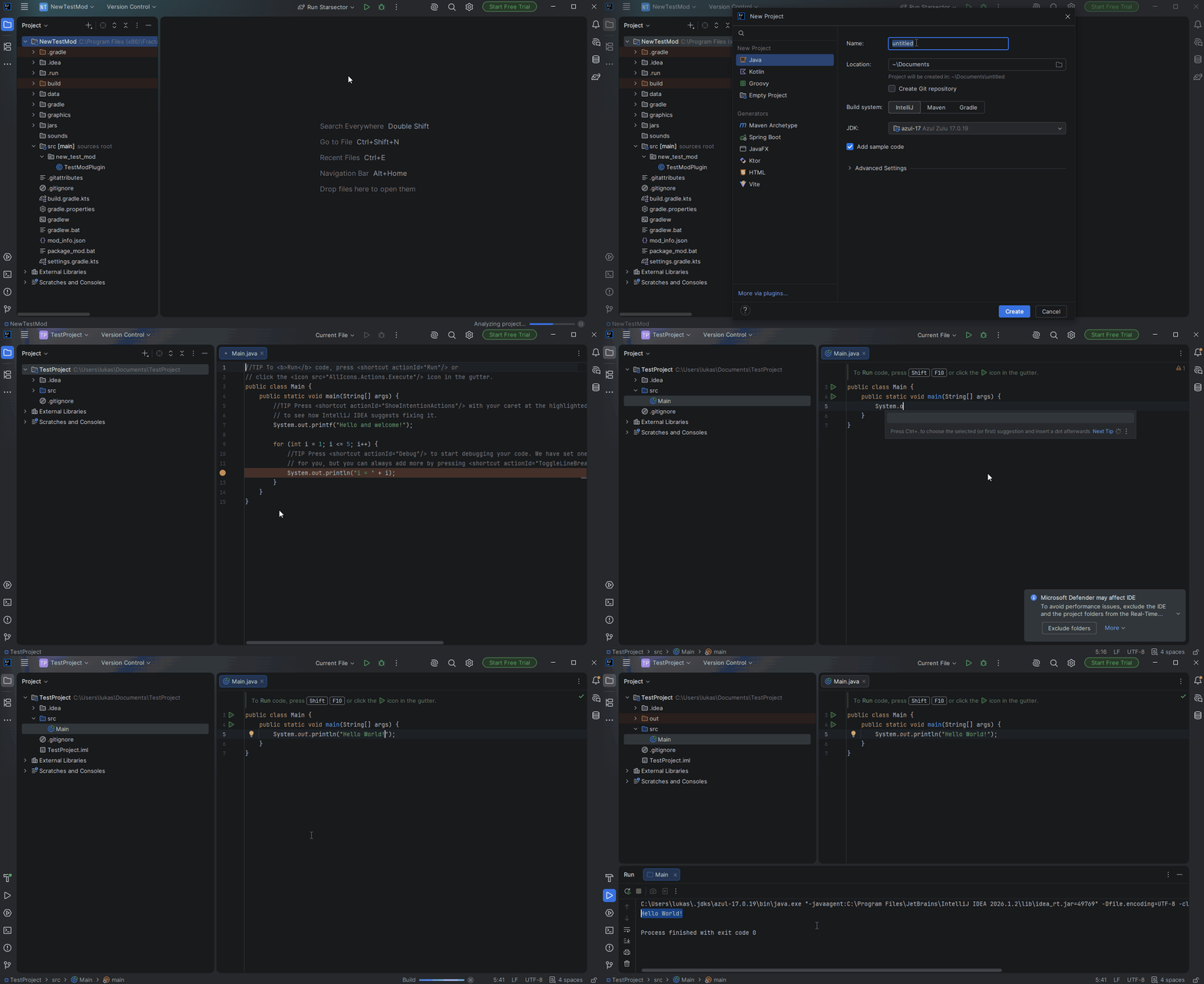
For Standard Java projects like this one, the public static void main(String[] args) method is the starting point from where your application starts running. This is different to Starsector mods, which aren't started from this method, and rather have their main entry point in their ModPlugin class.
The next page (Variables, Types and Operators) handles further features of Java. If you feel a bit overwhelmed, that is totally fine. Some things become more clear as you practice them. If you are particularly confused about a specific aspect, it may be worth searching it up online before continuing. You can also always join the discord for help.